1. Overview
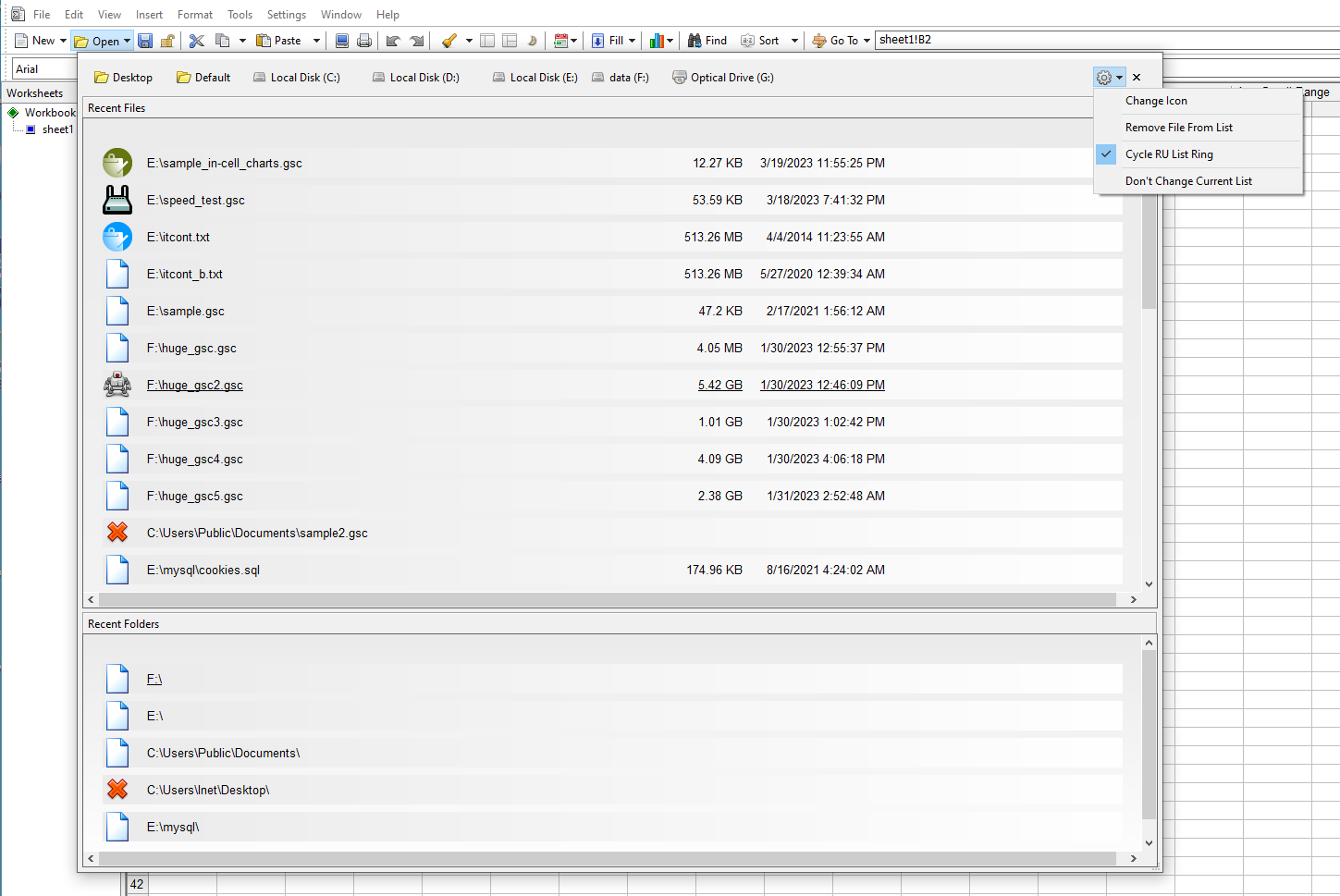
Click the Open toolbar button to display the lists of recently used files and folders. The lists appear in a split window. The file list shows paths, sizes, modification dates, and states. The folder list shows paths and the last access date.
You can assign one of many built‑in icons to each file or folder. Each list can contain up to 50 items, added cyclically. Both lists can be locked to prevent new additions or reordering.
2. Opening Files
To open a file or a file from a listed folder, click its link or use the cursor keys and press Space.
3. Default Folder
The Default button opens the folder specified in Settings > Options > General > Start Folder.
4. Changing Icons
To change a file’s icon, right‑click its current icon.
5. Removing Items
To delete a file from the RU list, right‑click it and choose Remove.
6. Preserving List Order
To preserve the current order of the RU file list, right‑click the list and uncheck Cycle RU List Ring. Otherwise, the most recently opened database moves to the top.
7. Restoring the Old Short “Open” Button
To restore the old icon‑only Open button, edit settings.xml and change:
<OldRecentFileList>0</OldRecentFileList>
to:
<OldRecentFileList>1</OldRecentFileList>