1. Overview
To modify GS-Calc settings, use the Settings > Options dialog box.
GS-Calc does not store settings in the Windows registry except optional COM/shell entries required by other applications. These entries may be added or removed using Settings > Register‑Unregister. All program settings are stored in settings.xml.
2. Where settings.xml is loaded from
- Local application data folder (e.g., C:\Documents and Settings\username\Local Settings\Application Data\GS-Calc)
- The installation folder of GS-Calc
3. Where settings.xml is saved
- The original file, if it exists
- The local application data folder (if installed in the default “Programs Folder”)
- The installation folder (if not installed in the default “Programs Folder”)
You can save or load different profiles using Settings > Save – Load Profile.
4. Undo/Redo Level
Number of actions that can be undone via Edit/Undo‑Redo. Valid range: <2, 200> Default: 20
Notes:
- Very high undo levels + large copy/paste operations may significantly increase memory usage.
- Drag‑drop copying counts as two actions; minimum undo level is 2.
5. Copy/Paste Level
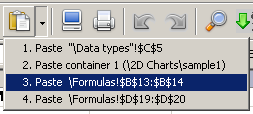
Number of cyclic copy “slots”. Valid range: <1, 16> Default: 1
To paste older items, click the arrow next to Paste:
6. Formula Notation for New ODF (*.ods) Files
Select which formula namespace should be used when saving newly created ODS files:
- Excel 2010/2013 (default)
- OpenFormula
- Google Docs
Existing ODS files retain their notation unless changed via Save As.
Using the correct namespace is important — unsupported namespaces may cause formulas to be removed and replaced with values when opened in other applications.
7. Auto‑Format Cells
If on, GS-Calc identifies the style of newly entered data and adjusts formatting accordingly. Default: On
8. Use Date Picker
If on, the system Date Picker control appears when editing date cells. See: editing and filling cells. Default: On
9. Parse Dates in Formatted Cells Only
If on, date strings convert only in cells formatted as Date, Time, or Date/Time. Default: Off
10. Enable Syntax Coloring
If on, formulas edited in cells use syntax coloring (via the Scintilla project). Default: Off
11. Update Copied Absolute Cell References
Controls whether absolute references like $A$1 update when copying or inserting/deleting rows/columns. Default: Off
12. Update Copied Relative Cell References
Controls whether relative references like A1 update when copying or inserting/deleting rows/columns. Default: On
13. Hide Cell Markers
Hides markers for formulas, drop‑down lists, comments, circular references (>1), and truncated text. Default: On
14. Show Progress When Saving/Loading Files
If on, a progress bar is displayed. Default: On
15. Display Formulas Instead of Values
Displays formulas instead of their results. Default: Off
16. Display References Using R1C1 Notation
Changes the cell reference notation. See: Cell references. Must use the current notation when entering formulas. Internally, A1 notation is always used. Default: Off (A1)
17. Extended Toolbar Button Styles
Adds a third “undeterminate” state for formatting buttons when a selection contains mixed formatting. Default: Off
Note:
May significantly slow down selecting very large ranges.
18. Auto‑Fit Column Widths in Imported Files
If on, after opening a text or xBase file, all non‑empty columns are automatically resized to fit their contents.
The resizing respects the limits defined in settings.xml:
- <AutoFitMin> — minimum width (default: 20 px)
- <AutoFitMax> — maximum width (default: 640 px)
Both values may be modified within the range <2; 2000>.
Note:
May slow down opening very large text or xBase files.
Default: Off
19. Automatically Close Chart Dialog Box
If on, the Chart dialog closes when switching worksheets. Leaving it open is useful when the chart is in one sheet and its data in another. Default: Off
20. Cell Text Overflow
Controls whether and how text longer than the cell width is truncated. Default: Allow if adjoining cells are empty
21. After Selecting Cells
Controls whether GS‑Base scrolls back to the selection origin. If off, click the address in the toolbar to return. Default: No action
22. Mouse Wheel
Controls how GS‑Base reacts to a single wheel movement:
- scroll lines
- scroll pages
Default: Scroll lines
23. After Pressing Enter
Controls scrolling after finishing cell editing. Default: No action
24. Start Folder
Specifies the folder shown first in the Open File dialog after launching GS-Calc.
25. AutoSave After
Period of inactivity after which GS-Calc automatically saves all open workbooks. Default: Never
26. AutoClose After
Period of inactivity after which GS-Calc automatically closes all open workbooks. Modified workbooks are saved before closing. Default: Never
27. Windows Opacity
Dialog box transparency. Valid range: <10, 100> Default: 100%
28. Default Font
Specifies the default font name. Default: Arial
29. Recursion Level
Number of circular reference iterations. Level ≥ 2 displays circular markers. Use “Inspect Cells” → “Add” to list circular formulas. Valid range: <1, 255> Default: 1
30. Perform Background Calculations
If on, formulas update in background processes. Updated results appear only after completion. No partial updates are possible.
Editing cell data restarts the update cycle; formatting does not.
The status bar shows progress and number of active processes.
Background updating requires more memory. Default: On
31. Keep Workbooks Referenced in Calculations Open
If on, referenced workbooks remain open until the referencing workbook closes. If off, referenced workbooks open and close repeatedly during recalculation. Default: On
32. Number of CPUs
Number of CPUs/threads used for updating formulas, auto‑fitting widths, and some editing actions.
Using more threads than available cores does not improve performance.
This value applies to workbooks whose individual “Number of CPUs” setting is “Default”. Default: 2
33. Threads Priority
Priority of update threads (Windows priority classes). High priorities may hamper other system processes.
Applies to workbooks whose individual “Threads priority” is “Default”. Default: 2
34. Automatic Update Mode
Recalculates the entire workbook after each cell edit.
Applies to workbooks whose individual “Update Mode” is “Default”. Default: On
35. Favor Compound Formulas
Optimizes calculations assuming formulas use both built‑in functions and references.
Applies to workbooks whose individual “Update Optimization Options” are “Default”. Default: On
36. Assume Short Calculation Chains
Optimizes calculations assuming worksheets contain short linked cell groups.
Applies to workbooks whose individual “Update Optimization Options” are “Default”. Default: On
37. Bottom‑Up Calculation
Recalculates cells from right to left and bottom to top (reverse of default order).
Applies to workbooks whose individual “Update Optimization Options” are “Default”. Default: Off