1. Opening a Text File
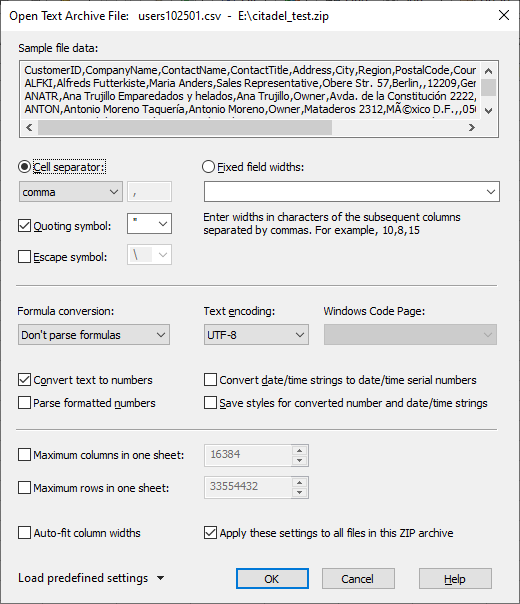
Use File → Open and choose Text from the File of type list. Then specify additional text file options as described below.
| Cell separator | A single character used to separate cells in one line. |
| Fixed cell widths |
A comma‑separated list of fixed cell width values, e.g.: 10,30,15,40 If fewer widths are specified than needed, remaining cells are assumed to contain 1024 characters. |
| Quoting symbol |
A symbol used to delimit fields containing separator characters. If you need to open a text file that does not conform to this standard, consider disabling quoting or specifying a unique quoting symbol that does not occur in the file. |
| Escaping symbol |
A symbol used to mark the occurrence of a single byte value specified as a two‑digit hexadecimal number
preceded by the x letter. Examples: Escaping can be selected when opening a text file. When saving, GS-Calc always uses quoting and UTF‑8 encoding. Use escaping only if you are certain the file uses this encoding method. |
|
Note: To remove the Text style and enable number/formula parsing, select the column and either:
|
|
| Formula conversion |
Determines whether loaded text strings should be evaluated and converted to formulas. The default No Conversion treats all cells as text labels. |
| Convert text to numbers |
Converts plain numeric text strings to numbers. Only unformatted numbers can be converted. The decimal point is determined by Settings → Locales and system regional settings. |
| Parse formatted numbers |
Converts formatted numeric strings (e.g., currency, parentheses) to numbers. Decimal point rules follow Settings → Locales and system regional settings. |
| Convert date/time strings | Converts text strings representing dates and/or times into date serial numbers. |
| Retain styles | Specifies whether cells containing numbers (after parsing) should retain their original data styles. |
| Encoding | Specifies the text encoding: UTF‑8, ANSI 8‑bit, ISO/OEM. |
| Maximum columns in sheet |
By default, GS-Calc warns if a text file contains more than 16K columns.
If enabled, additional sheets are created automatically to load columns beyond 16K. You may specify any splitting limit from 1 to 16384 columns. Text files may contain up to 1 million columns, split into 16384‑column sheets. If multiple sheets are created, saving them back as a text file prompts for a new ZIP64 archive name. To reopen such archives, choose: Text | Text Archive (*.txt, *.csv, *.tsv, *.zip). |
| Maximum rows in sheet |
Same as above, but for rows.
You may split text files into multiple sheets with any number of rows from 1 to 32 million. |
2. Auto‑Resizing Columns
To automatically resize columns when opening text files, enable:
Settings → Options → General → Auto‑fit column widths in imported files
(See Settings)
3. Saving a Text File
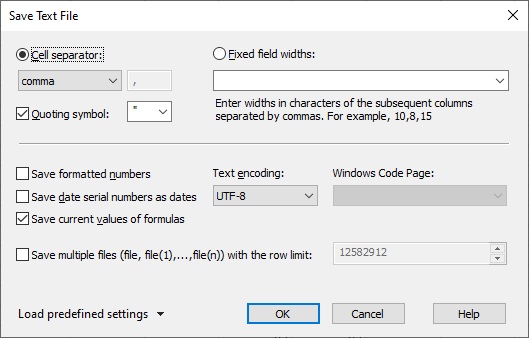
Use File → Save and choose Text from the File of type list. Specify the same text file options as when opening.
By default, choosing:
Text | Text Archive (*.txt, *.csv, *.tsv, *.zip)
saves only the current sheet as a standalone text file.
To save all sheets at once, specify a file name with the *.zip extension. This instructs GS‑Base to save all text files into a single ZIP64 archive, along with a short XML file containing text parameters for future automatic loading.
When saving ZIP text archives, row‑splitting options are disabled.
4. Related Topics
GS-Calc *.gsc and ODF *.ods files
Excel (*.xlsx, *.xml) files
PDF files
Text files (*.csv, *.txt, *.tab ...)
Text *.zip archives
GS-Base (*.gsb) files
dBase/Clipper/FoxPro files
SQLite (*.db) files
MySQL (*.sql) files